How to Automate Trading on Bitfinex With TradingView Signals
You have a TradingView strategy that fires clean alerts, and you want to automate trading on Bitfinex with TradingView signals instead of clicking every entry...
Read more
KuCoin TradingView automation, step by step: turn your alerts into orders on KuCoin using webhooks and a non-custodial, trade-only API key — your funds stay on the exchange.

A TradingView alert can pinpoint the exact moment your strategy fires, but it cannot place the trade for you. To go hands-free you need a layer that listens for that alert and turns it into a real order on your exchange. This guide covers KuCoin TradingView automation from start to finish: how to connect TradingView to KuCoin with webhooks and a trade-only API key, so your signals execute without you watching the chart — and without handing anyone custody of your funds.
We will not suggest a strategy or predict any outcome here. This is purely about wiring up dependable execution for a strategy you already run.
Automating signals into KuCoin involves three parts working in sequence:
The middle layer does the real work. It decides whether one alert becomes exactly one correct order, even when TradingView retries a webhook or an alert fires twice. If the webhook hop is new to you, our TradingView webhook to exchange guide walks through it in detail.
In KuCoin, open the account menu and go to API Management. Create a new API key and, when prompted, set an API passphrase — KuCoin requires this passphrase alongside the key and secret, so store all three together in a safe place. For permissions, enable General (read) and Spot and/or Futures trading, and leave Withdrawal and Transfer disabled.
An execution layer never needs withdrawal access. Disabling it means that even if the key were exposed, it could only place orders — never move assets off KuCoin. KuCoin also lets you bind the key to specific IP addresses; if your execution tool publishes its addresses, restricting the key to them adds another layer of control. For the full reasoning, see our guide on why trade-only API keys matter.
Enter the API key, secret, and passphrase into your execution tool and select KuCoin as the exchange. With SignalToExchange this connection is non-custodial: your funds stay in your KuCoin account, and the platform only places orders through the trade-only key. Confirm the tool can read your account balance before continuing — that verifies all three credentials are correct and that the permissions you set are sufficient.
Open your strategy or indicator in TradingView and create an alert. In the alert dialog, set the Webhook URL to the endpoint your execution layer gives you, then put a structured message in the alert body that describes the order: the symbol, the side (buy or sell), the order type, and the size. Most execution layers accept a small JSON payload here, so use the exact field names your tool documents so each value maps cleanly to a KuCoin order. Note that KuCoin spot symbols use a hyphen format such as BTC-USDT, so confirm your payload uses the symbol format your tool expects. Webhook alerts require a paid TradingView plan.
Before running at full size, fire one alert manually and confirm that a single order — and only one — appears in KuCoin. Check that the symbol, side, and quantity match what you intended. This is the moment to catch a mismatched ticker or a wrong position size while the stakes are small. On KuCoin in particular, confirm you are trading the market you meant: spot and futures are separate, with separate balances, so make sure your signal routes to the right one.
Once a test order routes correctly, enable the alert to run on your strategy's conditions. Watch the first several live signals to confirm each one becomes the order you expect. A reliable execution layer deduplicates repeated alerts so one signal fires exactly one order, which protects you from duplicate positions when TradingView retries a webhook.
SignalToExchange is non-custodial execution infrastructure. It takes your TradingView signal, validates it against your rules, and routes it to KuCoin as a correctly formatted order over low-latency connections. Your funds never leave KuCoin, keys are trade-only and encrypted at rest, and idempotent dispatch means one signal fires exactly one order. It does not build strategies or sell signals — you bring the strategy, and it handles reliable execution. If you want to understand the non-custodial model first, see what non-custodial actually means for your trades.
If you want to connect your TradingView alerts to KuCoin securely, Request access / start your free trial →
Automated trading involves risk. SignalToExchange is execution infrastructure and does not provide financial advice, trading signals, or guarantees of any kind.
You have a TradingView strategy that fires clean alerts, and you want to automate trading on Bitfinex with TradingView signals instead of clicking every entry...
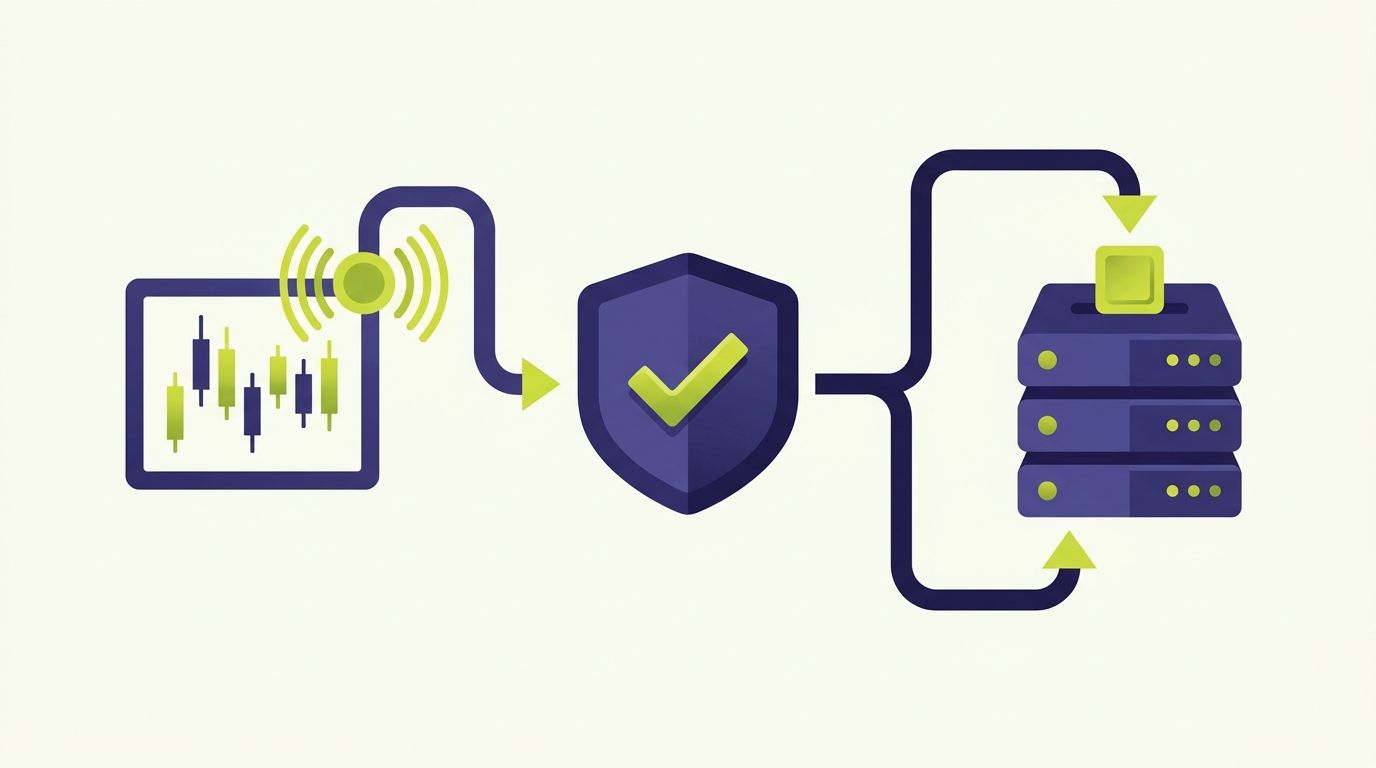
If you run strategies on TradingView and trade on HTX (Huobi), HTX Huobi TradingView automation closes the gap between the alert firing on your chart and the o...
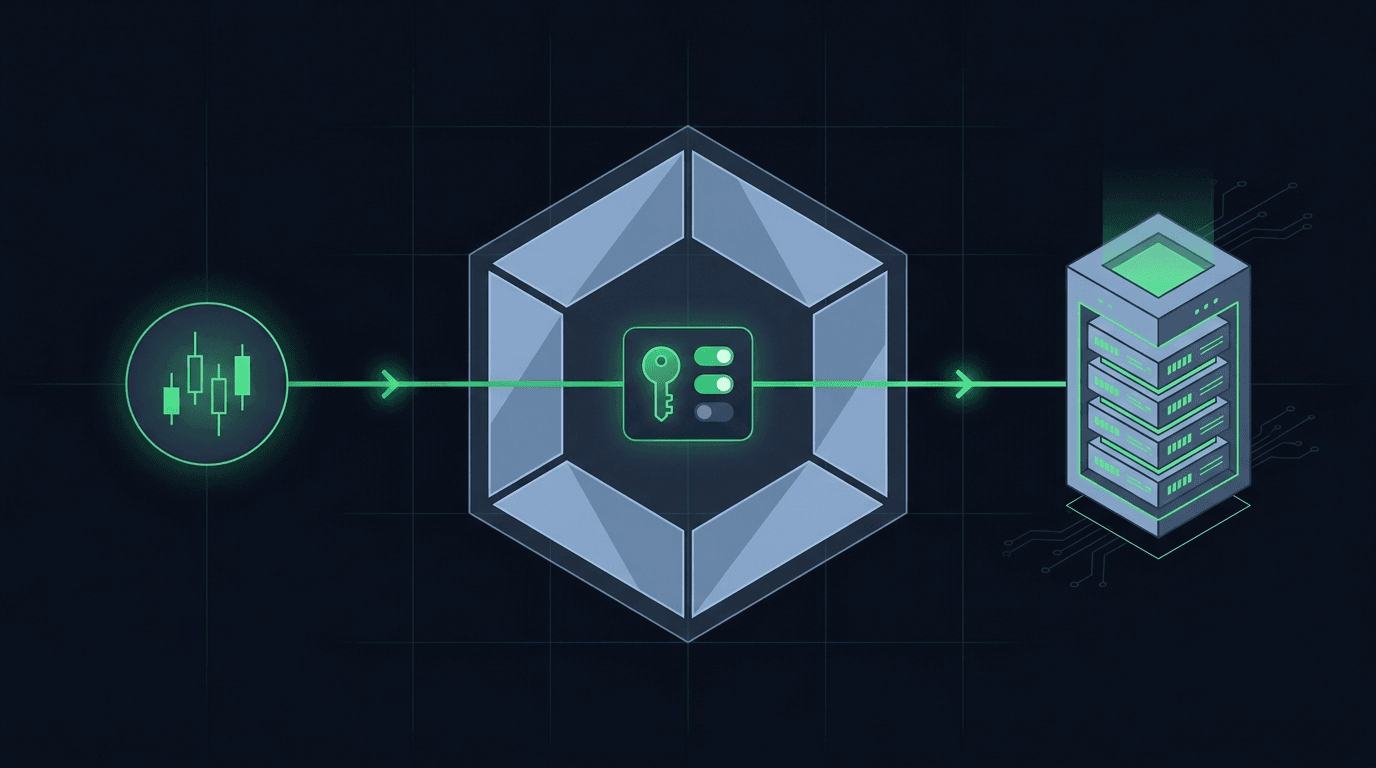
You have a TradingView strategy that fires clean alerts, and you want those alerts to place orders on Crypto.com without sitting at the screen all day. Crypto....
Non-custodial execution. Trade-only API keys. Independent infrastructure built for reliability.
Request Early AccessTrade-only API key enforcement. No withdrawal permissions. No custody.