How to Automate Trading on Bitfinex With TradingView Signals
You have a TradingView strategy that fires clean alerts, and you want to automate trading on Bitfinex with TradingView signals instead of clicking every entry...
Read more
Learn how to automate trading on BingX with TradingView signals: create trade-only API keys, connect a non-custodial relay, wire up a signed webhook alert, and test safely before going live.
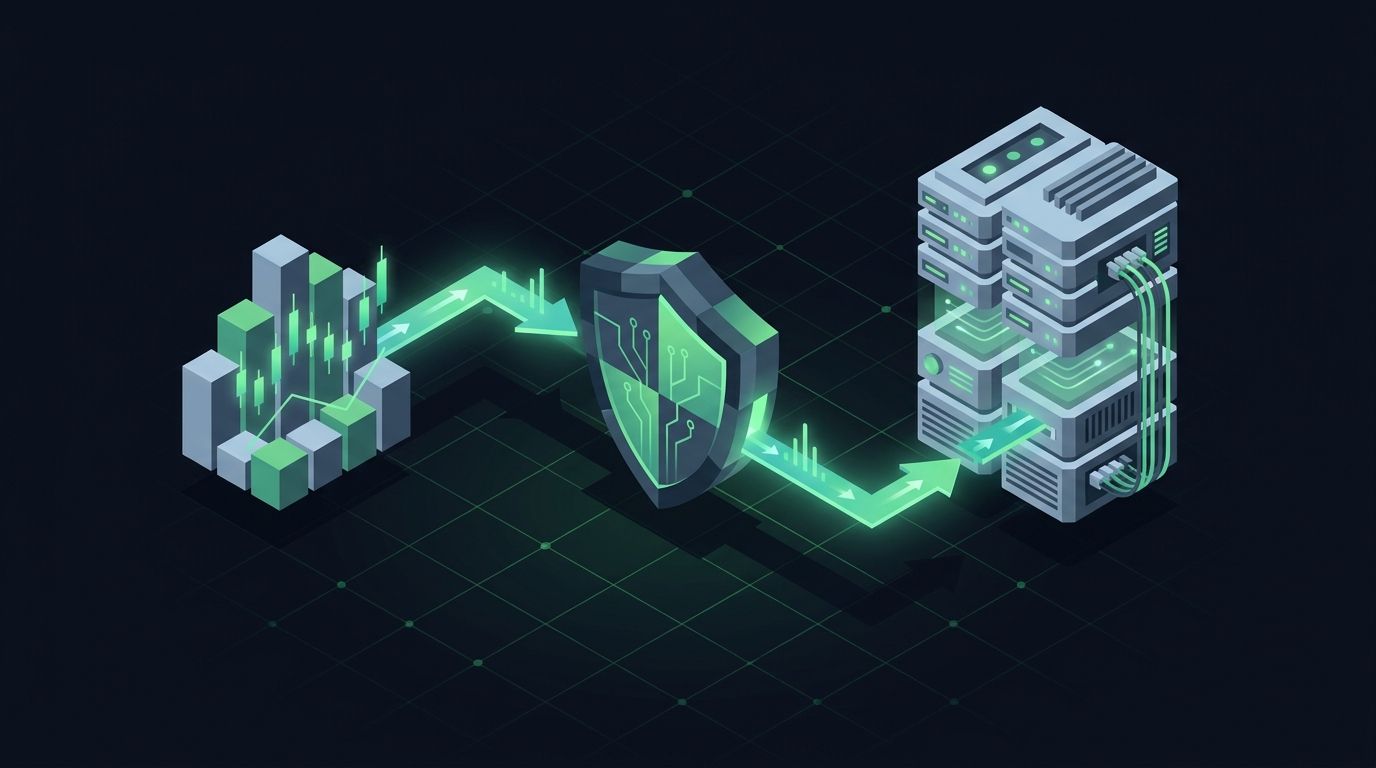
You built a strategy on TradingView. The alerts fire on schedule, your Pine Script logic is solid, and the chart lights up exactly when it should. Then nothing happens on the exchange. You are still the slow, manual link between a signal and a filled order — refreshing BingX, copying a price, clicking buy while the move you wanted already ran away from you. If you want to automate trading on BingX with TradingView signals, the goal is to remove that manual gap without handing your funds to a black box. This guide walks through exactly how to do it: what to prepare, how to create safe API keys, how to wire your alert to a webhook, and how to test before you risk real money.
TradingView is where your signal is generated. BingX is where your order is executed. Between those two things sits a relay: a piece of infrastructure that receives the TradingView alert, checks it, and submits a matching order to BingX through its API. That relay is the part most traders underestimate.
A TradingView alert on its own is just a message. It can hit a URL (a webhook), but TradingView cannot log into BingX or place an order for you. Something has to receive that webhook, authenticate to BingX with your API keys, translate the alert into a valid order request, and handle the exchange's response — including rejections, rate limits, and timeouts. SignalToExchange is that relay layer. You keep control of the strategy and your funds; the relay handles reliable, low-latency order submission. One signal fires exactly one order.
Three things: a funded BingX account with API access enabled, a TradingView plan that supports webhook alerts (webhook notifications require a paid TradingView tier), and a relay to connect them. You also need a clear idea of what your alert should do — which symbol, which side (buy or sell), and how order size is determined. If you are still deciding between order types, our guide on market vs limit orders in automated trading covers the trade-offs before you commit them to an alert.
You do not need a server, a hosted bot, or any code running on your own machine. You also do not need to give up custody of your coins. Your balance stays on BingX the entire time.
This is the most important security step, so do not rush it. When you generate an API key on BingX, you choose which permissions it carries. Enable spot and/or futures trading and read access. Do not enable withdrawals.
Trade-only keys can place and cancel orders and read your balances, but they cannot move a single coin off the exchange. Even in the worst case — a leaked key — an attacker cannot withdraw your funds with a trade-only key. This is the whole point of a non-custodial setup: your money never leaves your exchange, and the keys you share carry no withdrawal capability. For a deeper walkthrough, see how to set up trade-only API keys and our explainer on crypto exchange API key permissions.
While you are in the BingX API settings, restrict the key to specific IP addresses if you can. Binding a key to a known set of IPs means it is useless from anywhere else. Copy your API key and secret somewhere safe when BingX shows them — the secret is displayed only once.
Next, add your BingX trade-only key and secret to your relay account. The keys are stored encrypted, and because they are trade-only, the relay can submit orders but can never withdraw. This connection is what lets an incoming TradingView alert turn into a real BingX order in milliseconds rather than minutes.
At this stage it is worth confirming the small details that break automation later: the exact symbol format BingX expects (for example, a perpetual contract symbol differs from a spot pair), whether you are trading spot or futures, and any minimum order size the exchange enforces. Getting the symbol string right now saves you a string of rejected orders later.
Now connect the signal side. In TradingView, create an alert on your indicator or strategy. In the alert dialog, enable the webhook URL option and paste the endpoint your relay gives you. The alert's message field is where you describe the order in a structured payload — usually JSON — so the relay knows the symbol, side, and size.
A minimal payload tells the relay three things: which market to trade, whether to buy or sell, and how big the order is. TradingView placeholders let you build the message dynamically from the strategy that fired, pulling in the ticker and the order action automatically. If you are new to this, our guide on structuring a TradingView webhook JSON payload for orders shows the exact shape to use.
Add a shared secret or signature so the relay can verify the alert really came from you and not a stranger who guessed your webhook URL. Signing the payload — for example with HMAC — closes an easy attack surface; see how to secure a TradingView webhook with HMAC signing for the mechanics.
Do not point a brand-new automation at your full position on day one. Fire a single alert manually, watch the relay receive it, and confirm the order lands on BingX exactly as expected. Check the symbol, the side, and the size on the exchange side, not just in the alert log.
Then let it run on a small size through a few real signals. You are looking for boring, predictable behavior: every alert produces one order, sizes match, and nothing fires twice. Our guide on testing TradingView automation before going live covers a fuller checklist. Only scale up once the pipeline has proven it does the same thing every time. If you already run automation on other venues, the flow mirrors our MEXC automation guide — the exchange changes, the pattern does not.
A few habits keep an automated BingX setup reliable and safe:
No. Your coins stay in your BingX account the entire time. You connect trade-only API keys that can place orders but cannot withdraw, so a properly scoped setup never takes custody of your balance.
No. The relay receives the TradingView webhook and submits the order for you. There is nothing to host, patch, or keep online on your side.
You need a paid TradingView tier that supports webhook notifications. Free plans cannot send webhooks, so alerts cannot reach an external relay.
That depends on which markets your API key and relay support. Confirm whether you are trading spot or perpetual contracts, and make sure your alert payload uses the correct symbol format for that market.
A good relay surfaces the rejection instead of silently dropping it. Common causes are an incorrect symbol, an order below the exchange minimum, or a temporary rate limit. Reviewing how your setup handles failed and rejected orders is worth doing before you rely on it.
Automating BingX with TradingView comes down to four moves: create trade-only keys, connect them to a relay, wire up a signed webhook alert, and test on small size before scaling. Done in that order, you remove the slow manual step between signal and execution while keeping your funds on your own exchange and your keys locked to trade-only. You control the logic. The relay handles the execution.
Ready to connect your BingX account? Request access or start your free trial to route your first TradingView signal to a live order.
Automated trading involves risk. SignalToExchange is execution infrastructure and does not provide financial advice, trading signals, or guarantees of any kind.

You have a TradingView strategy that fires clean alerts, and you want to automate trading on Bitfinex with TradingView signals instead of clicking every entry...
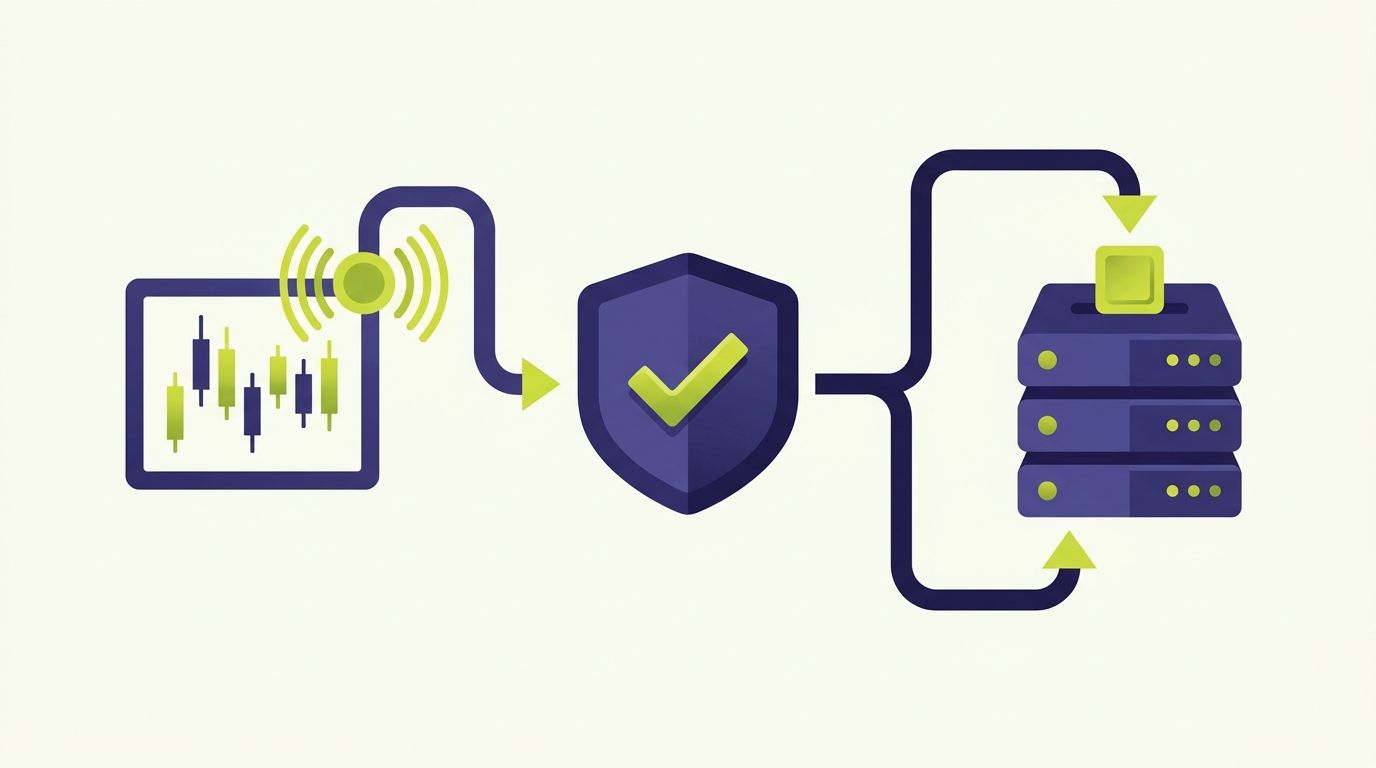
If you run strategies on TradingView and trade on HTX (Huobi), HTX Huobi TradingView automation closes the gap between the alert firing on your chart and the o...
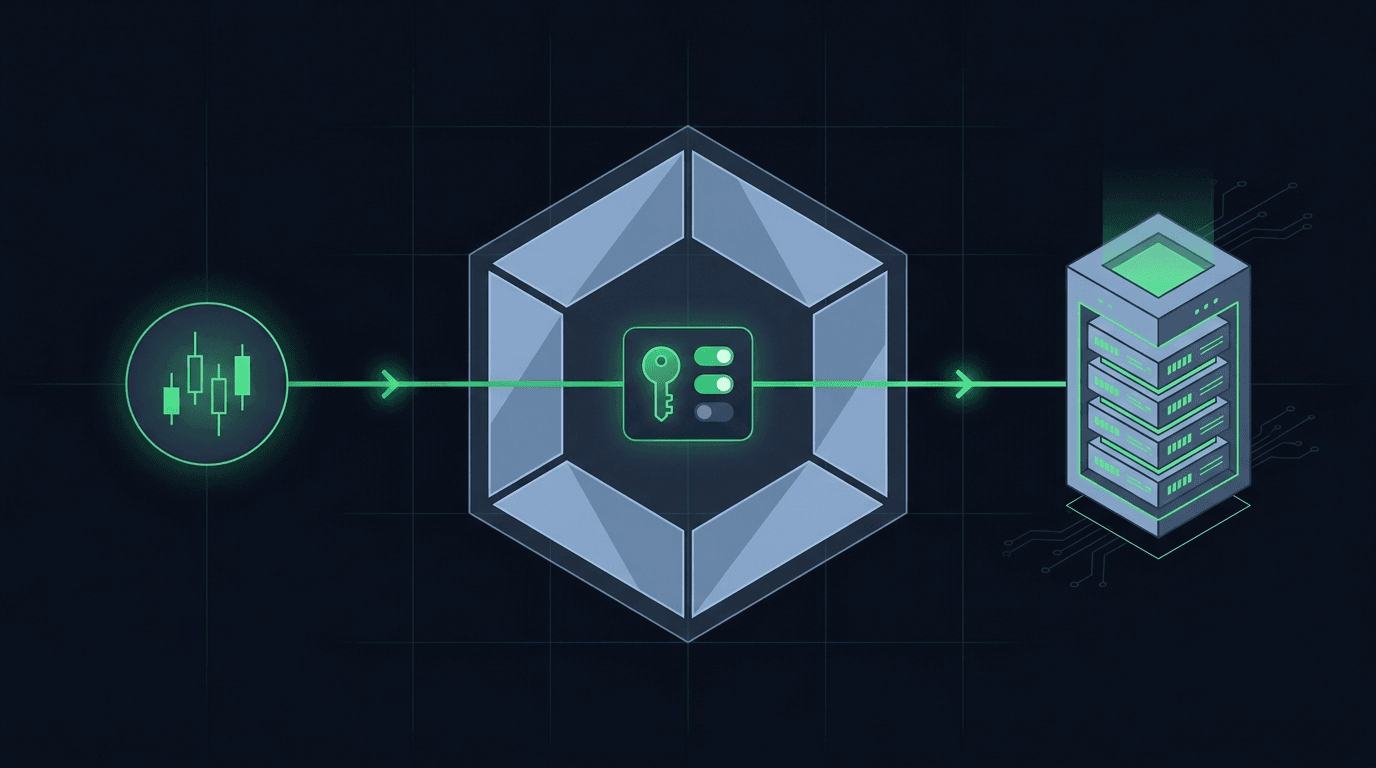
You have a TradingView strategy that fires clean alerts, and you want those alerts to place orders on Crypto.com without sitting at the screen all day. Crypto....
Non-custodial execution. Trade-only API keys. Independent infrastructure built for reliability.
Request Early AccessTrade-only API key enforcement. No withdrawal permissions. No custody.